> ## Documentation Index
> Fetch the complete documentation index at: https://cantonfoundation-docs-splice-portfolio-ui.mintlify.site/llms.txt
> Use this file to discover all available pages before exploring further.
# Allocations
> Allocate assets to allocation requests and withdraw allocations in Splice Portfolio.
Allocation requests can only be received and actioned from the Splice Portfolio, they cannot be initiated or created.
## Allocate Assets to an Allocation Request
There are two ways to allocate assets to an allocation request.
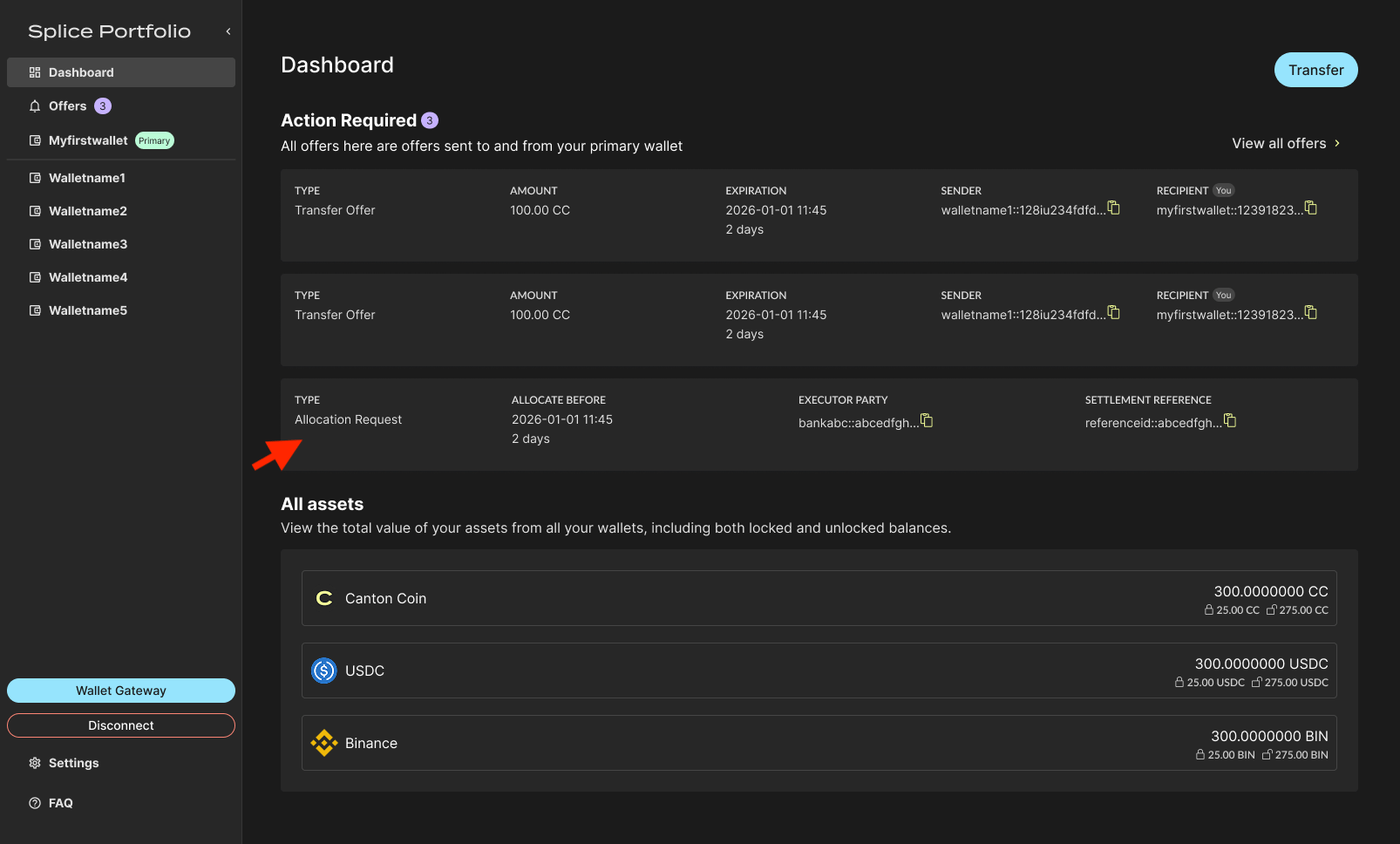
1. From the Dashboard, select the allocation request.
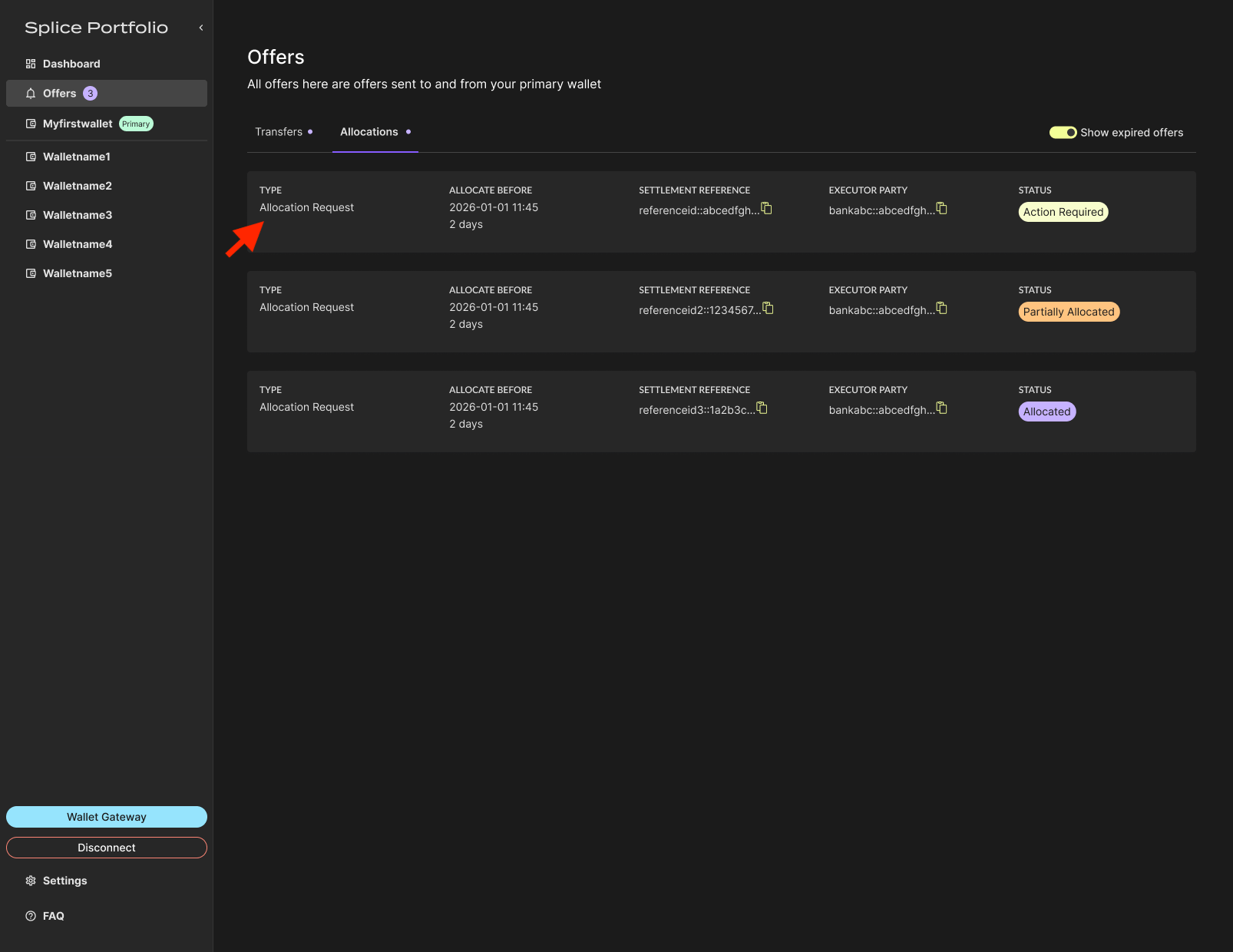
 Or navigate to **Offers > Allocations** and select the allocation request.
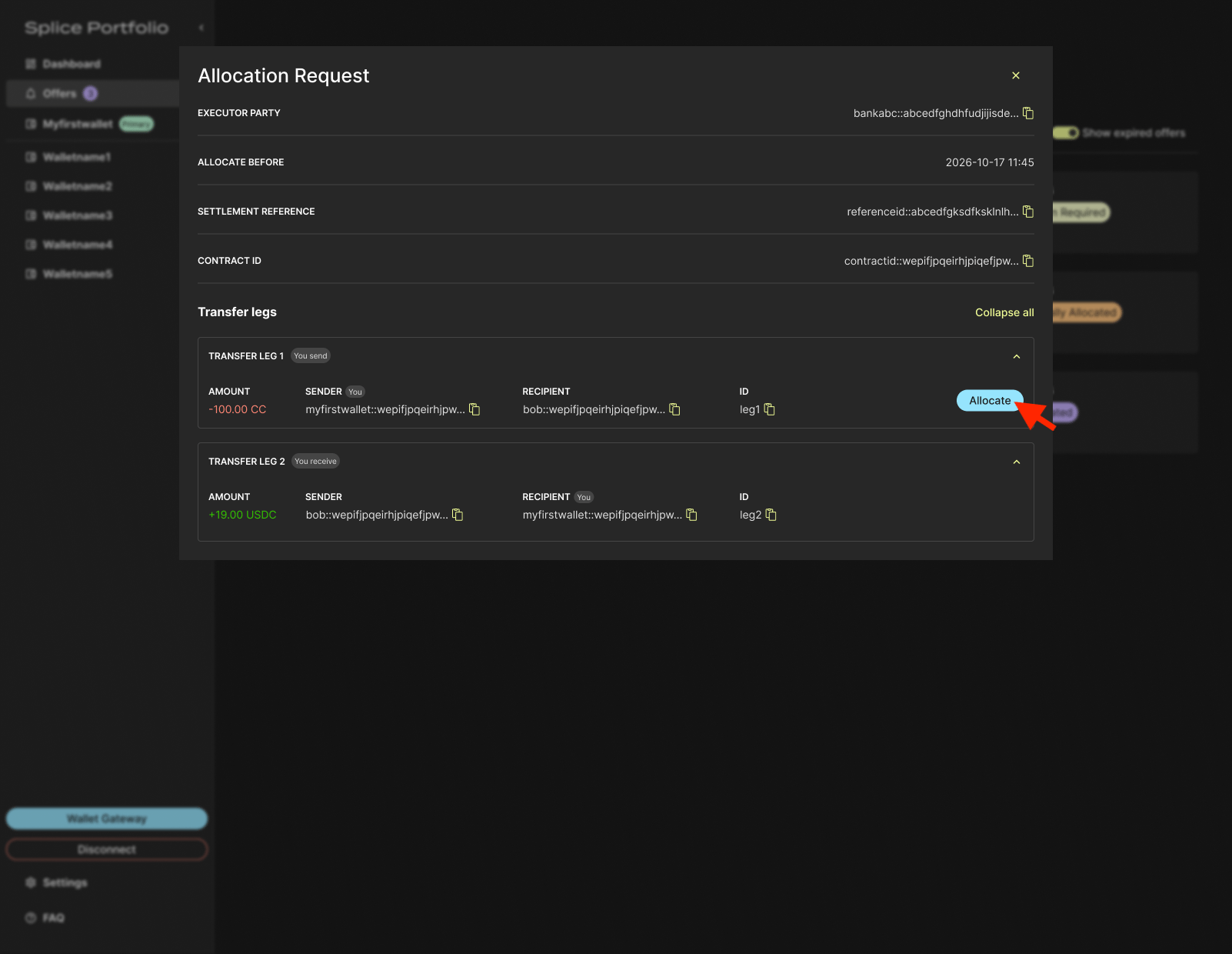
 2. Click **Allocate** for each trader leg where you are the sender.
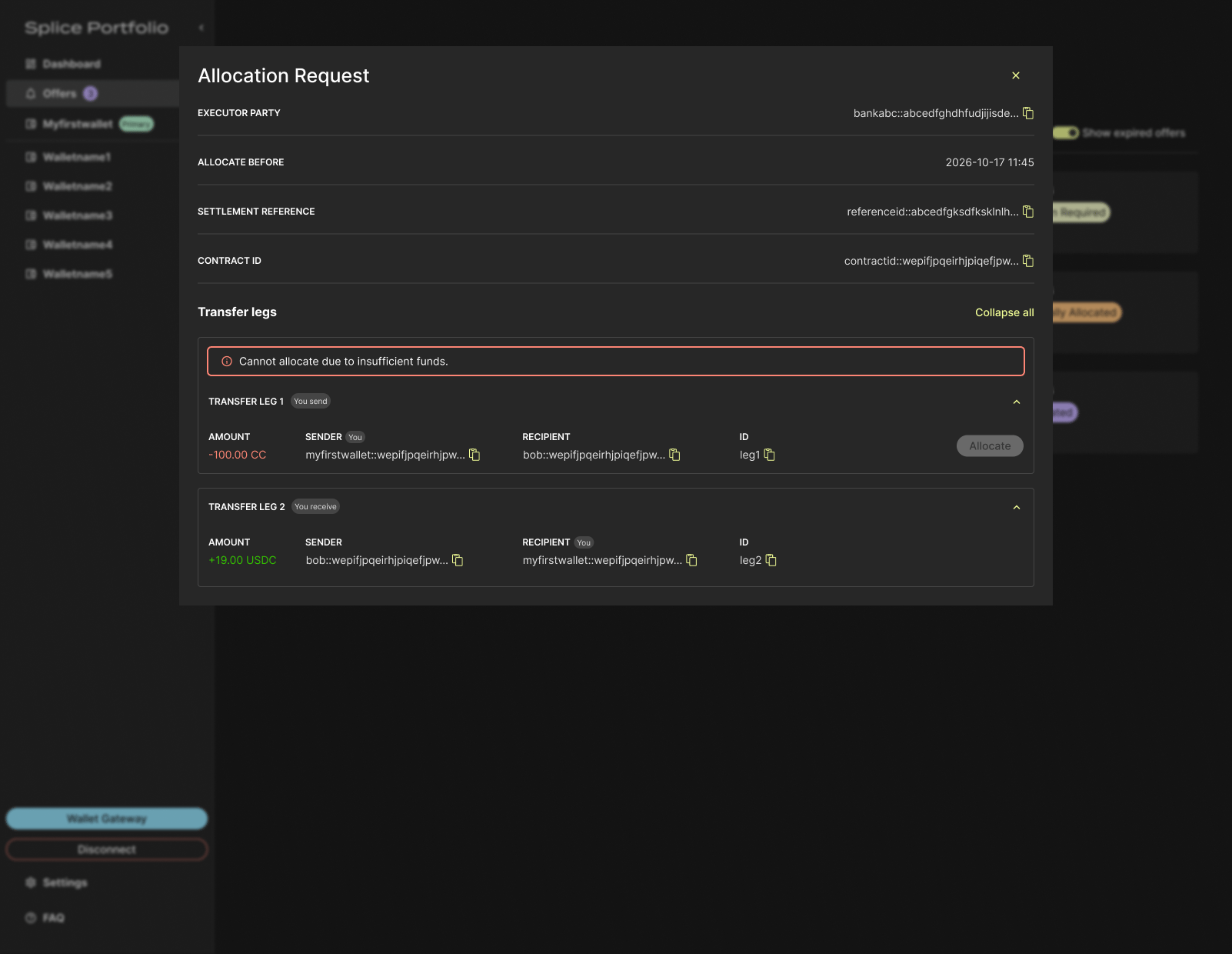
 If your primary party does not have enough assets available for allocation, the **Allocate** button is disabled and a message indicates that you have insufficient funds to complete the allocation.
 3. To complete this action, go to your CIP-103 wallet to complete signing.
4. Review the allocated request in **Offers > Allocations**.
3. To complete this action, go to your CIP-103 wallet to complete signing.
4. Review the allocated request in **Offers > Allocations**.
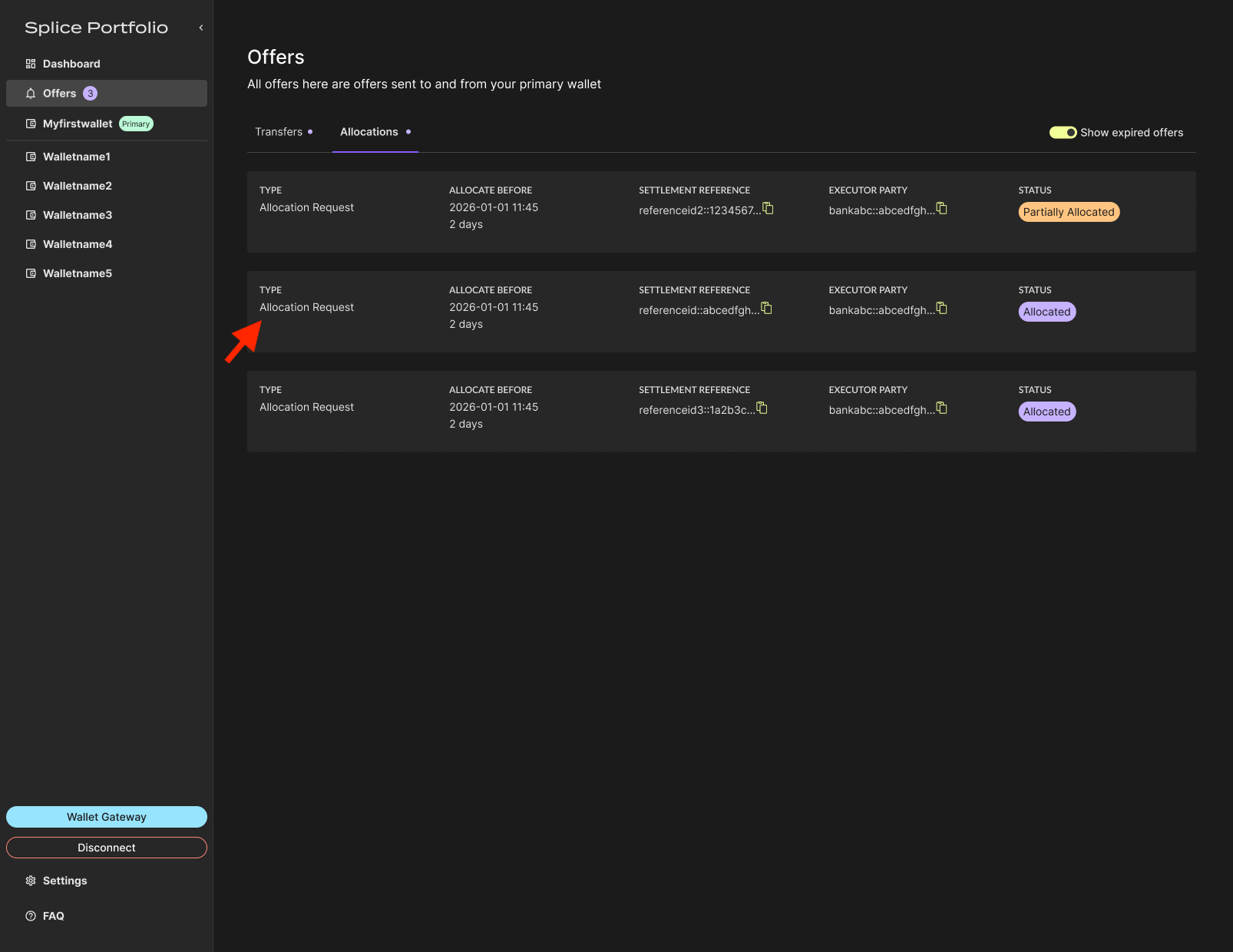 The allocated request remains in the Incoming tab because it is still pending and cannot be executed until the **Allocate Before** date. Until that date, you can withdraw your allocation if needed.
## Withdraw Allocations
Allocated offers can be withdrawn until the **Allocate Before** date.
1. Navigate to **Offers > Allocations** and select the allocated allocation request.
2. Open the allocation request and click **Withdraw** for one or more transfer legs.
The allocated request remains in the Incoming tab because it is still pending and cannot be executed until the **Allocate Before** date. Until that date, you can withdraw your allocation if needed.
## Withdraw Allocations
Allocated offers can be withdrawn until the **Allocate Before** date.
1. Navigate to **Offers > Allocations** and select the allocated allocation request.
2. Open the allocation request and click **Withdraw** for one or more transfer legs.
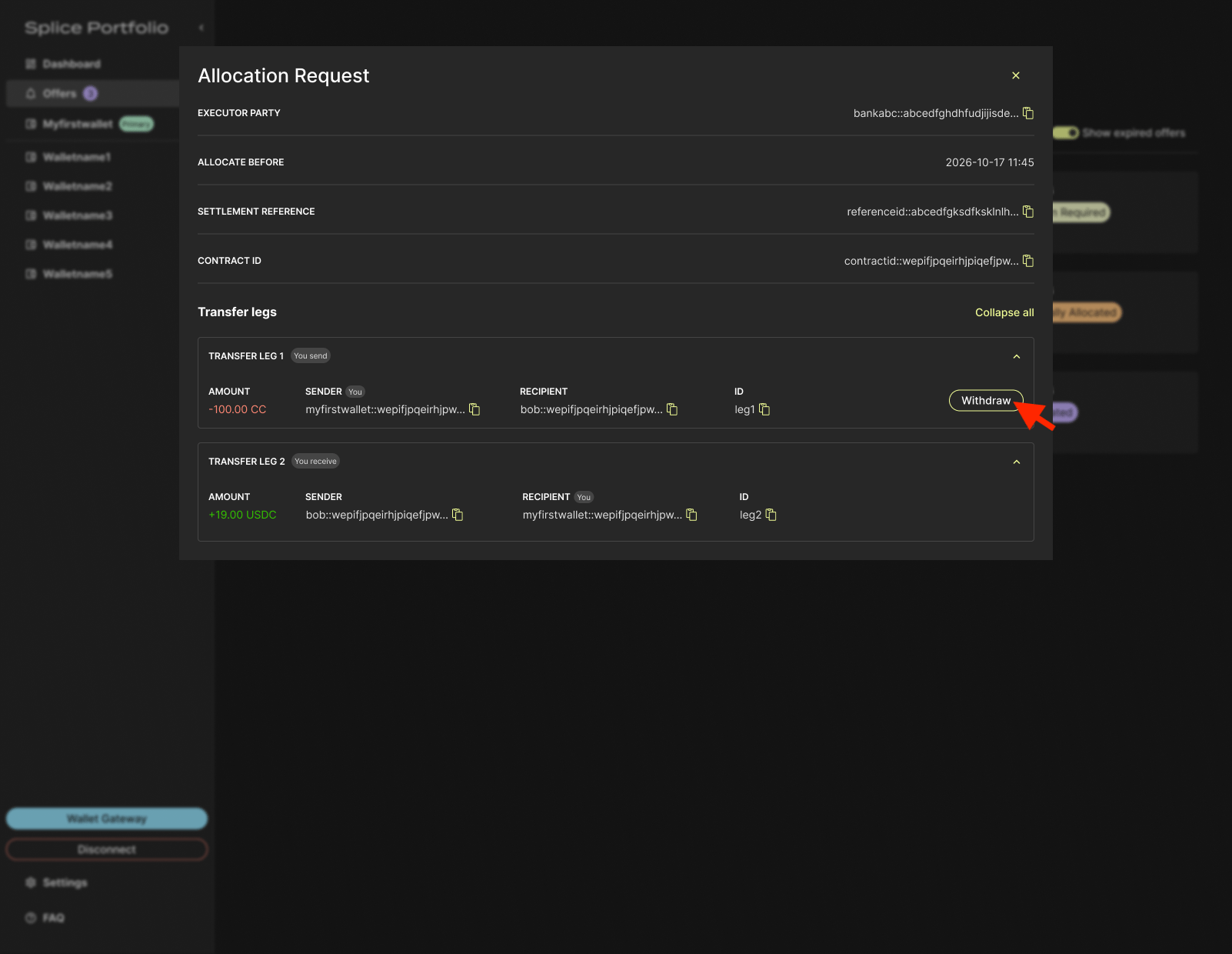 3. To complete this action, go to your CIP-103 wallet to complete signing.
You can re-allocate or withdraw one or more legs as many times as needed until the **Allocate Before** date.
## Next Steps
* [Add a Registry](/sdks-tools/development-tools/splice-portfolio/add-a-registry) -- Make a registry's assets available to allocate
* [Switch Parties](/sdks-tools/development-tools/splice-portfolio/switch-parties) -- Act on allocation requests sent to a different party
3. To complete this action, go to your CIP-103 wallet to complete signing.
You can re-allocate or withdraw one or more legs as many times as needed until the **Allocate Before** date.
## Next Steps
* [Add a Registry](/sdks-tools/development-tools/splice-portfolio/add-a-registry) -- Make a registry's assets available to allocate
* [Switch Parties](/sdks-tools/development-tools/splice-portfolio/switch-parties) -- Act on allocation requests sent to a different party