> ## Documentation Index
> Fetch the complete documentation index at: https://cantonfoundation-docs-splice-portfolio-ui.mintlify.site/llms.txt
> Use this file to discover all available pages before exploring further.
# Navigation
> Understand the Splice Portfolio layout: parties, dashboard, offers, and settings.
## Primary Party
 Splice Portfolio can see, and take actions on, assets across multiple Canton Network addresses. Although you can see assets from multiple accounts at all times, you can only take actions from one address at a time.
Your primary party is the party you can currently take actions from, such as transferring assets and sending and receiving transfer offers and allocation requests. It is identified by the **Primary** pill in the left navigation. To take an action from a different party, first [switch your primary party](/sdks-tools/development-tools/splice-portfolio/switch-parties) in your wallet provider.
Within the primary party view, you can:
* View assets in your primary party
* Review transaction history
* Initiate transfers
## Non-Primary Parties
Splice Portfolio can see, and take actions on, assets across multiple Canton Network addresses. Although you can see assets from multiple accounts at all times, you can only take actions from one address at a time.
Your primary party is the party you can currently take actions from, such as transferring assets and sending and receiving transfer offers and allocation requests. It is identified by the **Primary** pill in the left navigation. To take an action from a different party, first [switch your primary party](/sdks-tools/development-tools/splice-portfolio/switch-parties) in your wallet provider.
Within the primary party view, you can:
* View assets in your primary party
* Review transaction history
* Initiate transfers
## Non-Primary Parties
 All additional parties connected through your wallet provider are listed in the navigation.
Within each non-primary party view, you can:
* View assets
* Review transaction history
Transfers and allocation requests can only be sent and received through your primary party. See [Switch Parties](/sdks-tools/development-tools/splice-portfolio/switch-parties).
## Dashboard
All additional parties connected through your wallet provider are listed in the navigation.
Within each non-primary party view, you can:
* View assets
* Review transaction history
Transfers and allocation requests can only be sent and received through your primary party. See [Switch Parties](/sdks-tools/development-tools/splice-portfolio/switch-parties).
## Dashboard
 The Dashboard provides an aggregated view of assets across all parties from your wallet provider. You can select any asset to see how it is distributed across your parties.
The Dashboard also displays:
* Incoming transfer offers sent to your primary party that require your action
* Allocation requests sent to your primary party that require your action
## Offers
The Offers page is divided into two tabs: **Transfers** and **Allocations**. All offers shown on this page are associated with your current primary party. To view offers sent to or from another party, [switch your primary party](/sdks-tools/development-tools/splice-portfolio/switch-parties) in your wallet provider.
### Transfers
The Dashboard provides an aggregated view of assets across all parties from your wallet provider. You can select any asset to see how it is distributed across your parties.
The Dashboard also displays:
* Incoming transfer offers sent to your primary party that require your action
* Allocation requests sent to your primary party that require your action
## Offers
The Offers page is divided into two tabs: **Transfers** and **Allocations**. All offers shown on this page are associated with your current primary party. To view offers sent to or from another party, [switch your primary party](/sdks-tools/development-tools/splice-portfolio/switch-parties) in your wallet provider.
### Transfers
 The Transfers tab displays all transfers sent to and from your current primary party. Each offer includes a status that reflects its current state.
 **Action Required** -- This offer requires your attention. You need to either accept or reject the offer.
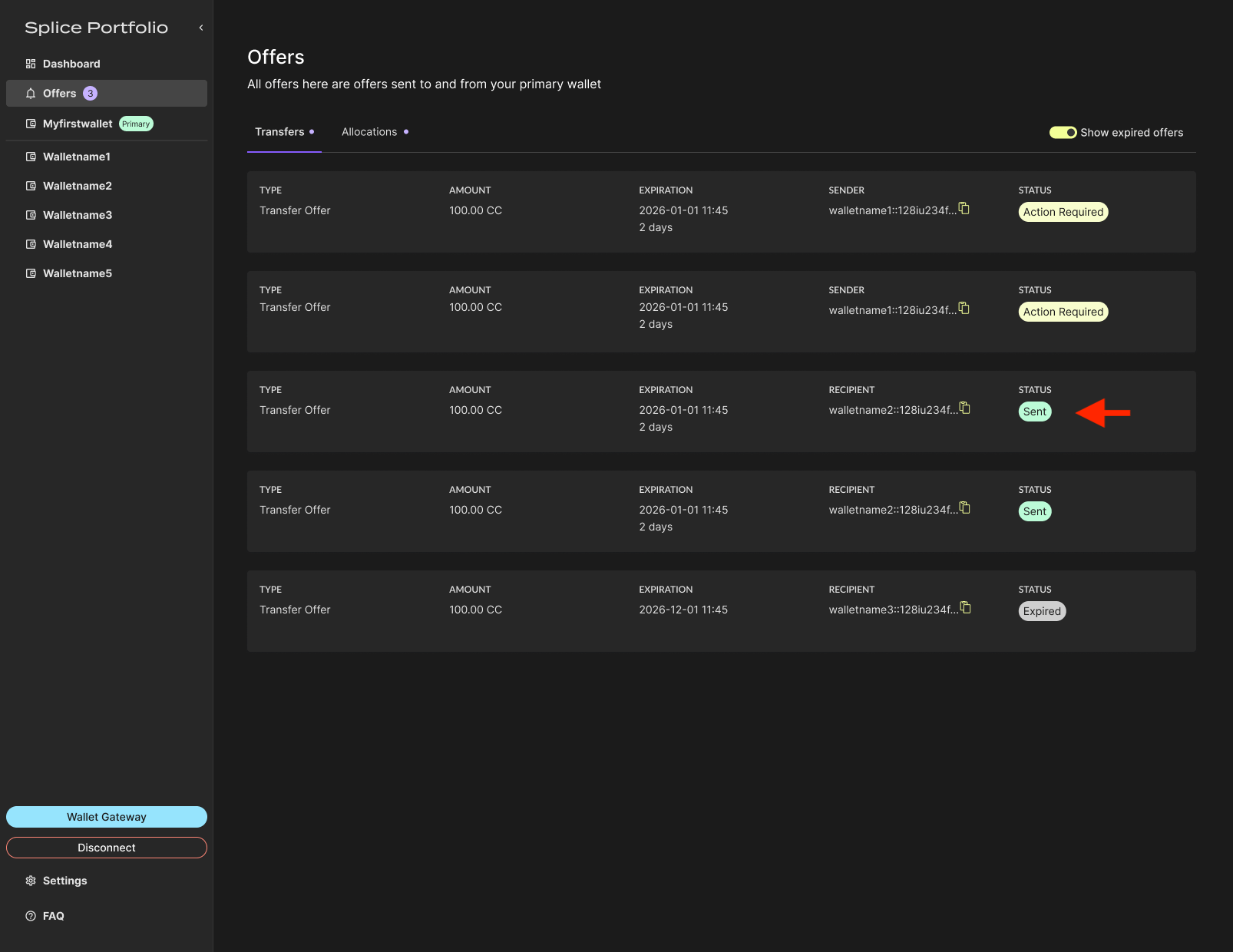 **Sent** -- Your offer has been sent to the recipient. The offer stays on the Offers page until the recipient accepts or rejects it, or until you withdraw it.
 **Expired** -- This offer has passed its expiration date. If you sent the offer, you can remove it from this page by opening the offer and clicking **Withdraw**. If you received the offer, it remains visible until the sender withdraws it. To hide expired offers from this page, turn off **Show Expired Offers** at the top of the view.
### Allocations
**Expired** -- This offer has passed its expiration date. If you sent the offer, you can remove it from this page by opening the offer and clicking **Withdraw**. If you received the offer, it remains visible until the sender withdraws it. To hide expired offers from this page, turn off **Show Expired Offers** at the top of the view.
### Allocations
 The Allocations tab is where you view all allocation requests sent from your current primary party. Each offer includes a status that reflects its current state.
Allocation requests cannot be sent from Splice Portfolio.
The Allocations tab is where you view all allocation requests sent from your current primary party. Each offer includes a status that reflects its current state.
Allocation requests cannot be sent from Splice Portfolio.
 **Action Required** -- This offer requires your attention. You need to allocate assets to complete the request.
 **Partially Allocated** -- Part of the allocation is still pending on your end. At least one allocation leg still requires action.
 **Allocated** -- All allocation legs have been completed and no further action is required from you. You can still withdraw allocations from one or more legs at this point. The allocation stays on the Offers page until the **Allocate Before** date is reached.
## Wallet Gateway
**Allocated** -- All allocation legs have been completed and no further action is required from you. You can still withdraw allocations from one or more legs at this point. The allocation stays on the Offers page until the **Allocate Before** date is reached.
## Wallet Gateway
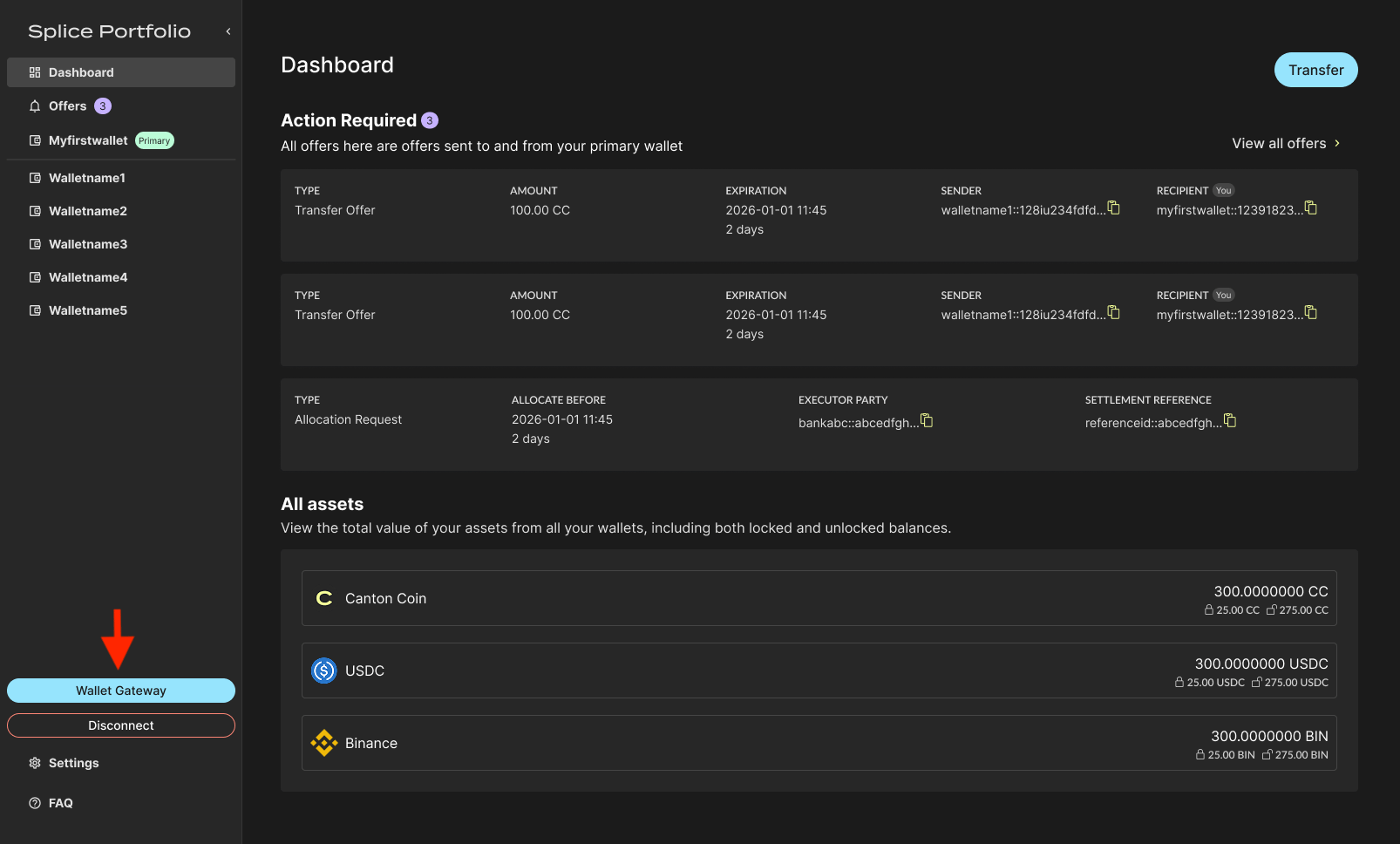 When connected, this button launches the [Wallet Gateway](/integrations/wallet-gateway/overview), the open source wallet signing provider.
If you are using the Wallet Gateway as your wallet signing provider, you can launch it to:
* [Switch your primary party](/sdks-tools/development-tools/splice-portfolio/switch-parties)
* View transfer offers (incoming and outgoing) and incoming allocation requests, and send them to the address's assigned key store
## Disconnect
When connected, this button launches the [Wallet Gateway](/integrations/wallet-gateway/overview), the open source wallet signing provider.
If you are using the Wallet Gateway as your wallet signing provider, you can launch it to:
* [Switch your primary party](/sdks-tools/development-tools/splice-portfolio/switch-parties)
* View transfer offers (incoming and outgoing) and incoming allocation requests, and send them to the address's assigned key store
## Disconnect
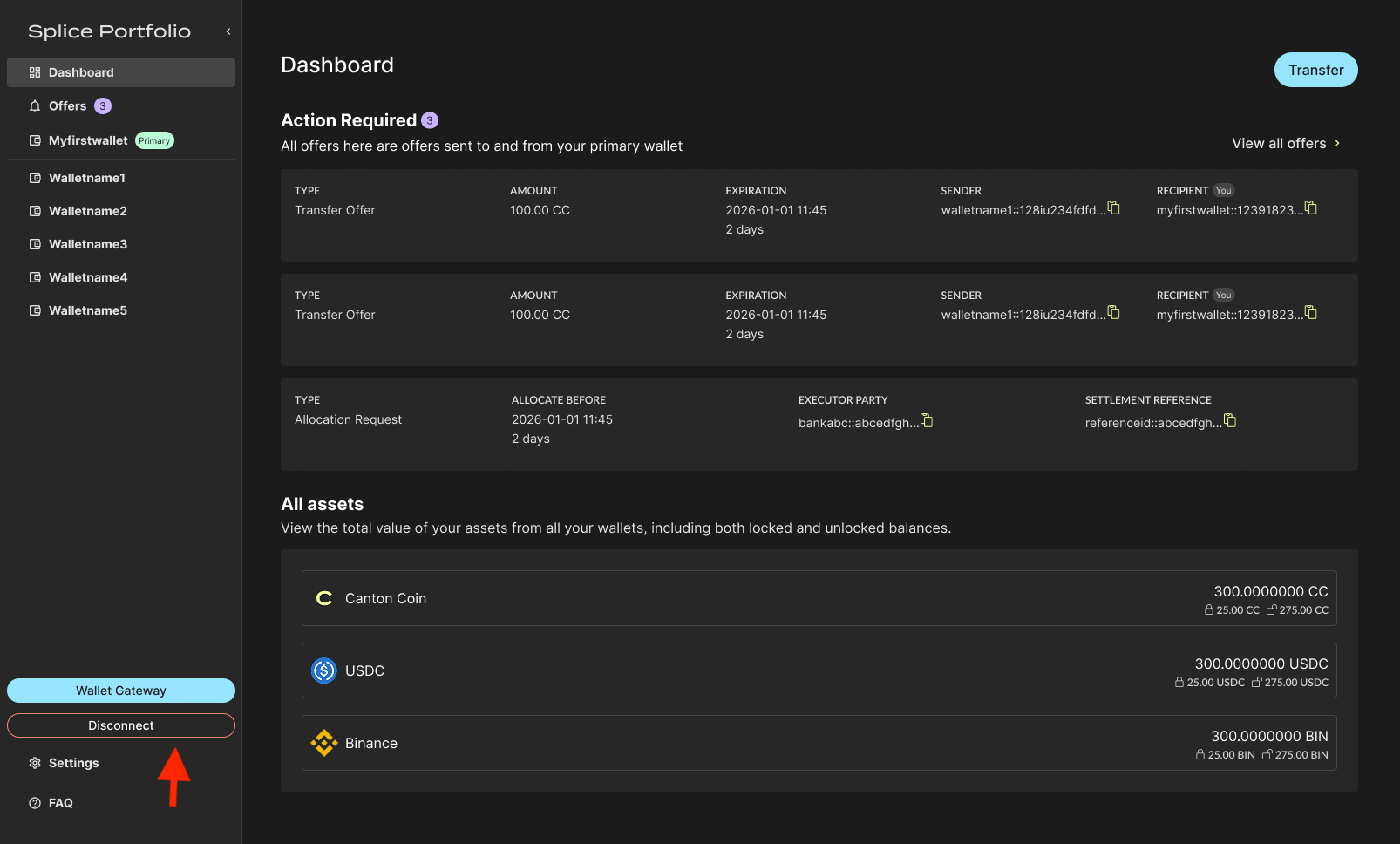 This button disconnects Splice Portfolio from your wallet provider.
## Settings
This button disconnects Splice Portfolio from your wallet provider.
## Settings
 Settings allow you to:
* [Configure asset pre-approvals](/sdks-tools/development-tools/splice-portfolio/pre-approvals) for your primary party. Transfers of assets that have pre-approval enabled do not need to be accepted through a two-step transfer and are automatically accepted into your party.
* [Add registries](/sdks-tools/development-tools/splice-portfolio/add-a-registry) to Splice Portfolio. A registry is a Daml application that can issue, service, and govern digital assets.
* DevNet only: [tap the faucet](/sdks-tools/development-tools/splice-portfolio/devnet-faucet) to receive test tokens for deployment and testing purposes.
## Next Steps
* [Transfers](/sdks-tools/development-tools/splice-portfolio/transfers) -- Send, withdraw, accept, and reject transfer offers
* [Allocations](/sdks-tools/development-tools/splice-portfolio/allocations) -- Respond to allocation requests
* [Switch Parties](/sdks-tools/development-tools/splice-portfolio/switch-parties) -- Change which party you take actions from
Settings allow you to:
* [Configure asset pre-approvals](/sdks-tools/development-tools/splice-portfolio/pre-approvals) for your primary party. Transfers of assets that have pre-approval enabled do not need to be accepted through a two-step transfer and are automatically accepted into your party.
* [Add registries](/sdks-tools/development-tools/splice-portfolio/add-a-registry) to Splice Portfolio. A registry is a Daml application that can issue, service, and govern digital assets.
* DevNet only: [tap the faucet](/sdks-tools/development-tools/splice-portfolio/devnet-faucet) to receive test tokens for deployment and testing purposes.
## Next Steps
* [Transfers](/sdks-tools/development-tools/splice-portfolio/transfers) -- Send, withdraw, accept, and reject transfer offers
* [Allocations](/sdks-tools/development-tools/splice-portfolio/allocations) -- Respond to allocation requests
* [Switch Parties](/sdks-tools/development-tools/splice-portfolio/switch-parties) -- Change which party you take actions from